Use the Window menu to make a window visible (if you hid or closed it for some reason) and/or to bring it to the front if other windows are on top of it. Each window organizes specific aspects of the overall dosimetric process.
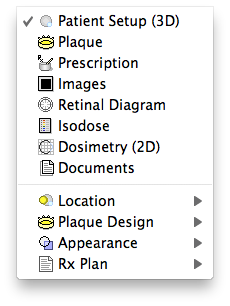
- Patient Setup - this window provides an interactive 3D view of the eye. Use this window to position the plaque on the tumor, orient the suture eyelets, and to display 3D isodose surfaces.
- Plaque - this window controls all aspects of plaque design & radionuclide management. Use this window to select a plaque and to load sources into the plaque
- Prescription - this window organizes all prescription functions. Use this window to customize the dose calculation, to choose a prescription point, and to display dose to points on the central axis of the plaque or tumor.
- Images - this window organizes the use of medical imaging (CT, MRI, fundus or ultrasound) to measure the size of the eye and the location of the tumor. All Quicktime supported image file formats such as PICT, TIFF, GIF, JPG etc... are supported.
- Retinal Diagram - this window presents a polar diagram of the entire retinal surface from the posterior pole (near the fovea) to the limbus. Use this diagram to digitize the tumor base, points of interest, and to plot isodose lines.
- Isodose - use this window to select isodose legend values and isodose normalization.
- Dosimetry (2D) - this window displays isodose plots on meridian and coronal planes that bisect the eye, and is also used to digitize points of interest and dose profile lines.
- Documents - this window selects and previews all printed documents.
- Location - this hierarchical menu offers direct access to windows that affect the location of objects such as plaques and points of interest.
- Plaque Design - this hierarchical menu offers direct access to windows that affect the design of plaques such as the shell, lip, eyelets and source slots.
- Appearance - this hierarchical menu offers direct access to windows that affect the 3D imaging process such as translucency vs wireframe and/or opaque rendering.
- Rx Plan - this hierarchical menu offers direct access to windows that affect the treatment plan such as patient ID and implant time calculation.