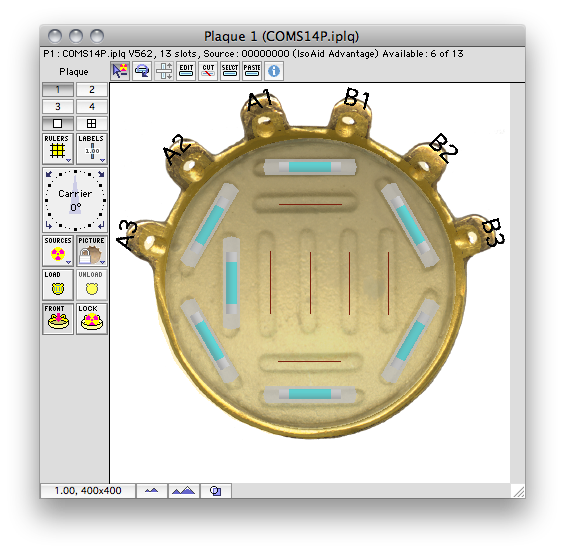
The Plaque window is used to select a plaque, load sources into a plaque, and design new plaques.
The status line at the top of the window indicates the active plaque (P1..P4), the number of source positions or "slots" in the carrier (13 in this example), and information concerning the current inventory selection (in this case the inventory name is "200 HU-144", it is a batch of I-125 sources, and 18 of the 25 seeds are still available).
To load sources into a plaque, select a batch of sources from the inventory by clicking on the Isotope button (you can also use the Isotope menu to select sources). The status line will change to reflect the active inventory selection. Then, simply click on an empty position marker. Empty markers are always brown lines. Filled positions are indicated by other colors such as red, green or blue. To return a source to the inventory, simply click on its marker again. As you add sources to the plaque they will also appear three dimensionally in the Setup window if plaque rendering is enabled.
The buttons on the left of the Plaque window (from top to bottom) control various aspects of the plaque and its display in this window:
- Plaque 1..4 - selects the active plaque. Plaque simulator supports up to 4 plaques per plan. The default condition is to allow only one of these plaques to be "active" at any time for dosimetry purposes. In most instances you will simply use plaque #1 for planning, with plaques 2..4 reserved to optionally compare alternate plaque designs and loading patterns.
- Rulers - Superimposes a ruled grid on the plaque to assist with plaque design. The rulers can be dragged by clicking on them.
- Offset - allows a plaque to be offset from the scleral surface. The attitude of the plaque can also be adjusted.
- Carrier rotation - if a plaque has a carrier (such as the COMS and ROPES plaques) this control rotates the carrier around the central axis of the plaque. The arrows on this control rotate the carrier clockwise or counter clockwise in 1 or 90 deg. increments. You can enter a carrier angle from the keyboard by double clicking on the text field at the center of the control. You can also drag the indicator.
- Isotope - Opens the isotope inventory dialog.
- Labels - Labels each source with its strength at time of implant.
- Load - Loads all source positions in the active plaque with the current inventory selection.
- Unload - Returns all sources in the active plaque to the inventory.
- View - Switches between frontal (concave) and back (convex) views of the plaque.
- Lock - Locks the isotope in a plaque. A password is required to unlock and remove isotope from a locked plaque. Locking a plaque is primarily used to protect permanently loaded plaques files such as the BEBIG Ru-106 plaques.
In addition to the buttons in this window, numerous other parameters are adjustable from the Isotope, Plaque, and
Optimize menus which appear on the menu bar any time this window is frontmost.
Isotope Menu |
Plaque Menu |
Optimize Menu |
Guide Contents