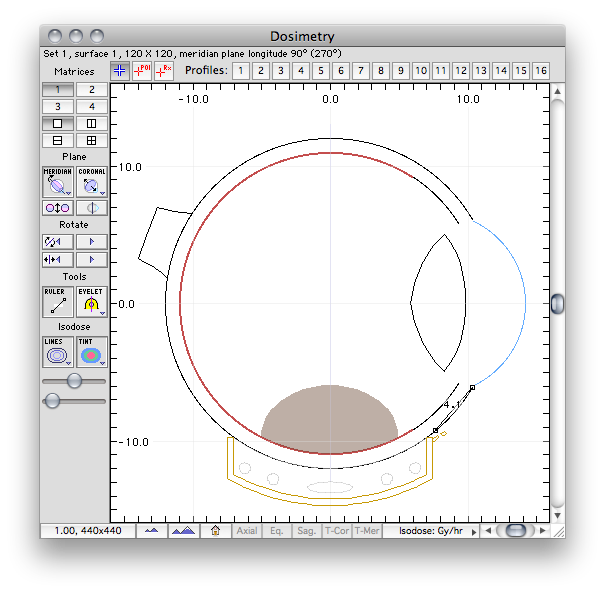
The 2D Dosimetry window.
- Single pane - Displays only the currently active dosimetry set. To facilitate rapid dosimetric comparison of prospective plaque designs, Plaque Simulator supports 4 plaques and 4 dosimetry sets per patient. By default, each dosimetry set is associated with a corresponding plaque. Set 1 is associated with plaque 1, set 2 with plaque 2, and so on. Only one plaque (and its dosimetry set) at a time are normally considered to be "active". Changing either the active plaque or the active dosimetry set autmatically changes both the plaque and its associated dosimetry set. (This behavior can be disabled in case you wish to apply all four sets to the same plaque).
- Quad pane - Displays all four dosimetry sets.
- Set 1 - Activates dosimetry set 1 and plaque 1.
- Set 2 - Activates dosimetry set 2 and plaque 2.
- Set 3 - Activates dosimetry set 3 and plaque 3.
- Set 4 - Activates dosimetry set 4 and plaque 4.
The Surface 1 button activates dosimetry surface #1 for calculation and display. By default the dose matrix for this surface is calculated on a plane which bisects the eye in a meridian plane. This plane is defined by points at the anterior pole, posterior pole and, if autotracking is enabled, the center of the plaque. Control click on this button to change the dose matrix size. Plaque Simulator defaults to a 120x120 matrix. Use the largest size your computer can calculate in a reasonable amount of time.
- The Surface 2 button activates dosimetry surface #2 for calculation and display. By default this matrix is calculated on an equatorial plane. The position of this plane is set by the Plane position controls in the Setup Window. Control click on this button to change the dose matrix size.
- The Ruler button enables a measurement ruler. Option-clicking this button moves one end of the ruler to the intersection of the sclera and limbus. The other end of the ruler moves to the suture point on the sclera beneath the most recently selected Eyelet (e.g. 11.3 mm in the illustration above). You can manually drag the ruler to measure arbitrary chord distances if you wish.
- The Eyelet button sequentially moves the meridian plane to pass through each of the plaque's eyelets. If enabled, the Ruler will automatically adjust to show the chord distance between the limbus and the scleral suture point beneath the eyelet. Control-click (or right mouse button) on this button to show a contextual menu from which you can select a specific eyelet. This is essentially a shortcut to the Move Meridian Plane to item of the Plot menu.
- The Lines button enables isodose lines.
- The Tint button tints the region between isodose lines. Control click on this button to change the tint level.
- The Plane position buttons are a pair of directional controls immediately below the Lines and Tint buttons which manually adjust the position of the selected 2D dosimetry surface.
Additional control over 2D isodose plotting is provided in the Plot menu.
Plot Menu |
Guide Contents